
How to get smoother FPS in 1LEFT on a phone
If turning the camera feels jerky, start with one short bot match. It gives you a repeatable way to try a setting before your next online round.
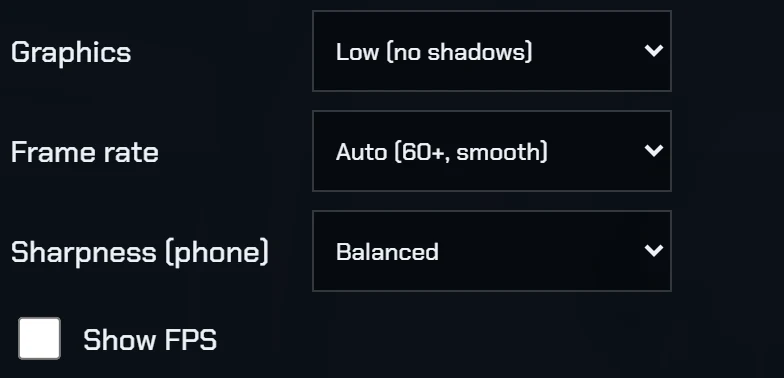
Make a comparison you can feel
- Turn the phone sideways. Open the gear in the main menu and enable Show FPS.
- Play Offline · Bots. Pick a map, turn in place, then cross an open area. Watch the counter during the turn.
- Change one setting and repeat on the same map with the same number of bots. Look for steadier camera movement during the slowest part.
What to change first
- Fast turns look choppy
- Try Sharpness (phone) → Fast (smoother). The game draws fewer pixels. If movement feels steady again but distant objects look too soft, try Balanced.
- Frames still drop in busy areas
- Choose Graphics → Low (no shadows) and repeat the same route. This reduces scene work independently of the sharpness setting.
- You want to save battery
- Choose Frame rate → 30 (saves battery). If you want a smoother turn again, return to Auto. Max follows the display refresh as far as the device can keep up.
When the FPS counter looks steady
If camera turns feel smooth against bots but online opponents jump between positions, compare the millisecond readings in the Online server picker. Try a region with a lower reading. If the view only feels too fast when you swipe, adjust look sensitivity in Settings → Touch Controls.